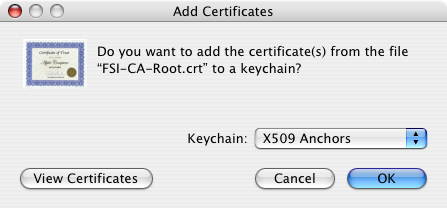
Adding certificate in older versions of OS X
This procedure will help you get the Apple Mail application working to check your FozzTexx.com email.
You need to have our new security certificate installed before setting up your email. Click here to download and install the certificate.
If your system does not automatically prompt you to install the certificate, find the “FozzTexx-CA-Root.crt” file in your downloads folder and double-click on it. A dialog appears, asking if you want to import the certificate. Depending on your version of the operating system, it may look like this:
Adding certificate in older versions of OS X
In newer versions of OS X, select “System” then confirm and follow the prompts to complete the certificate installation.

Adding certificate in newer versions of OS X
Launch the Apple Mail program, then select Mail > Preferences from the menu. Click “Accounts” along the top navigation bar, and select the account you wish to update. If you do not already have an account, click the plus (+) sign at the bottom of the panel (in this case the procedure might be slightly different, but enter the information the same way you see below).
NOTE: Be sure to choose IMAP as the account type.
Under the Account Configuration tab, enter your account information as follows. Replace “account” with your user name. Your password is also your account password (it is masked for security).
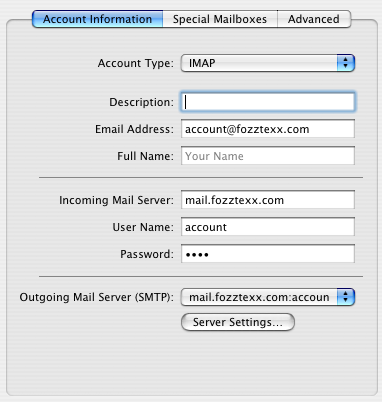
Account Information
Click “Server Settings” and enter the information as follows, again replacing “account” with your user name. Enter your password again as well.
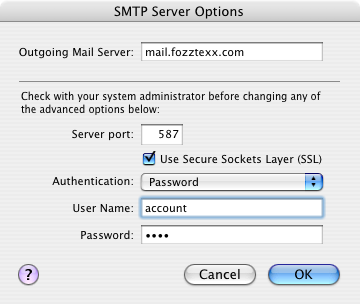
Server Settings
Click “OK” and then click on the “Advanced” button. Enter the following information:
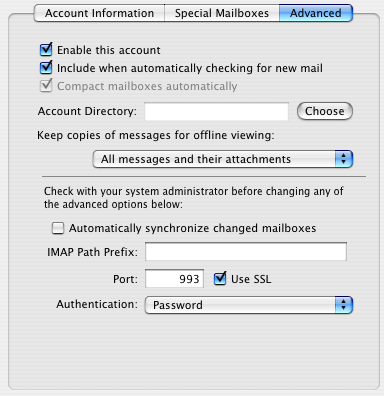
Advanced Settings
Close the Preferences panel and enjoy your email.